SYNCING ENDNOTE WEB AND ENDNOTE DESKTOP
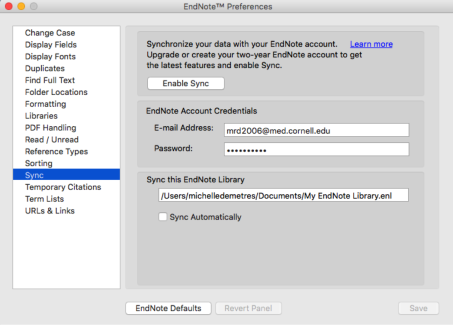
- In the desktop client, go to Preferences – Sync and enter your EndNote Web email address and password.
- The sync process may take a while, depending on how large the library is.
- Once you’ve set up your preferences, the Sync button on the main desktop client interface (two circular arrows) syncs the two platforms.
- You can also set your libraries to sync automatically.
IMPORTING REFERENCES FROM PUBMED
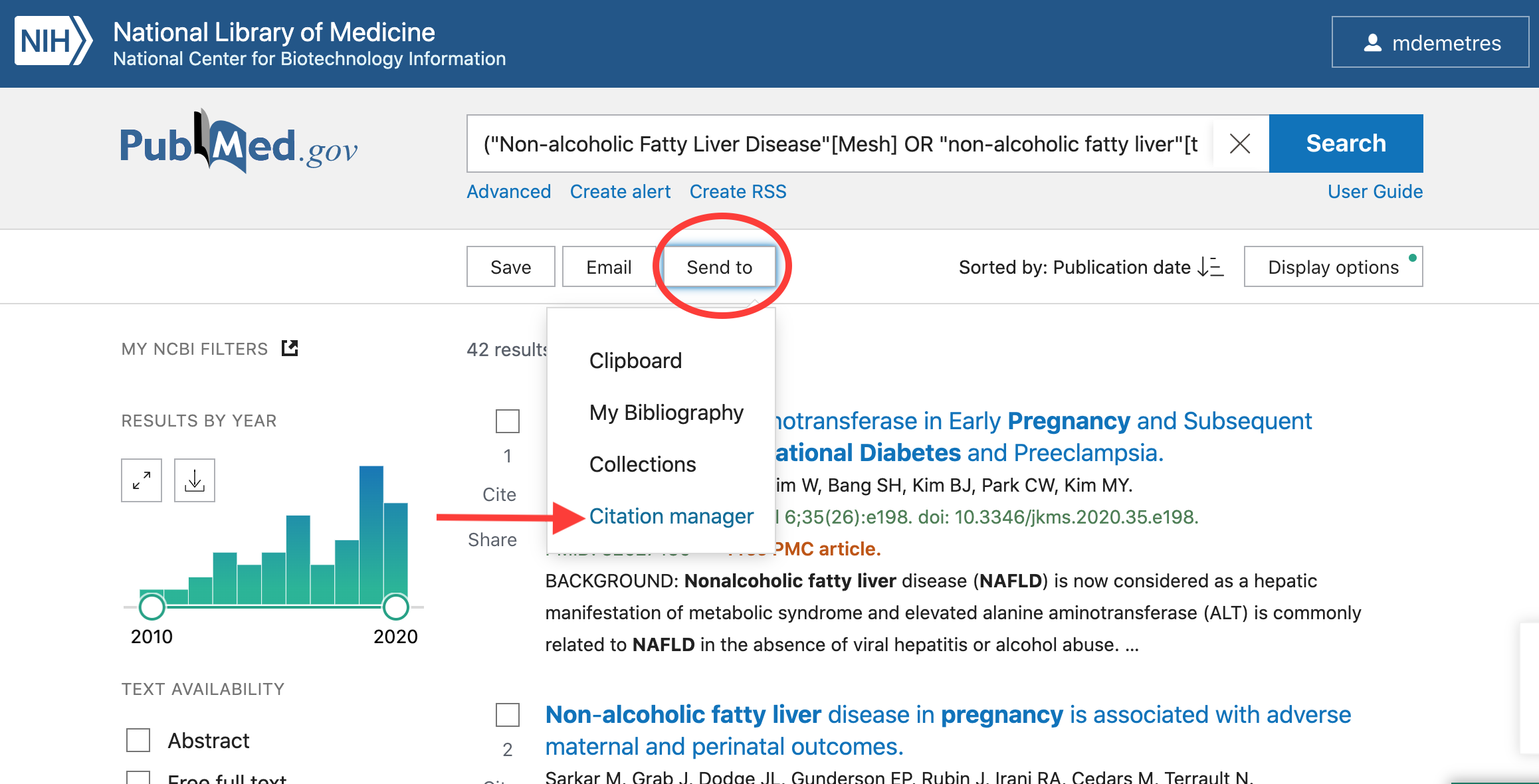
- In PubMed, Select the references you wish to send.
- Click “Send to” – "Citation manger" at the top of the page, below the search box.
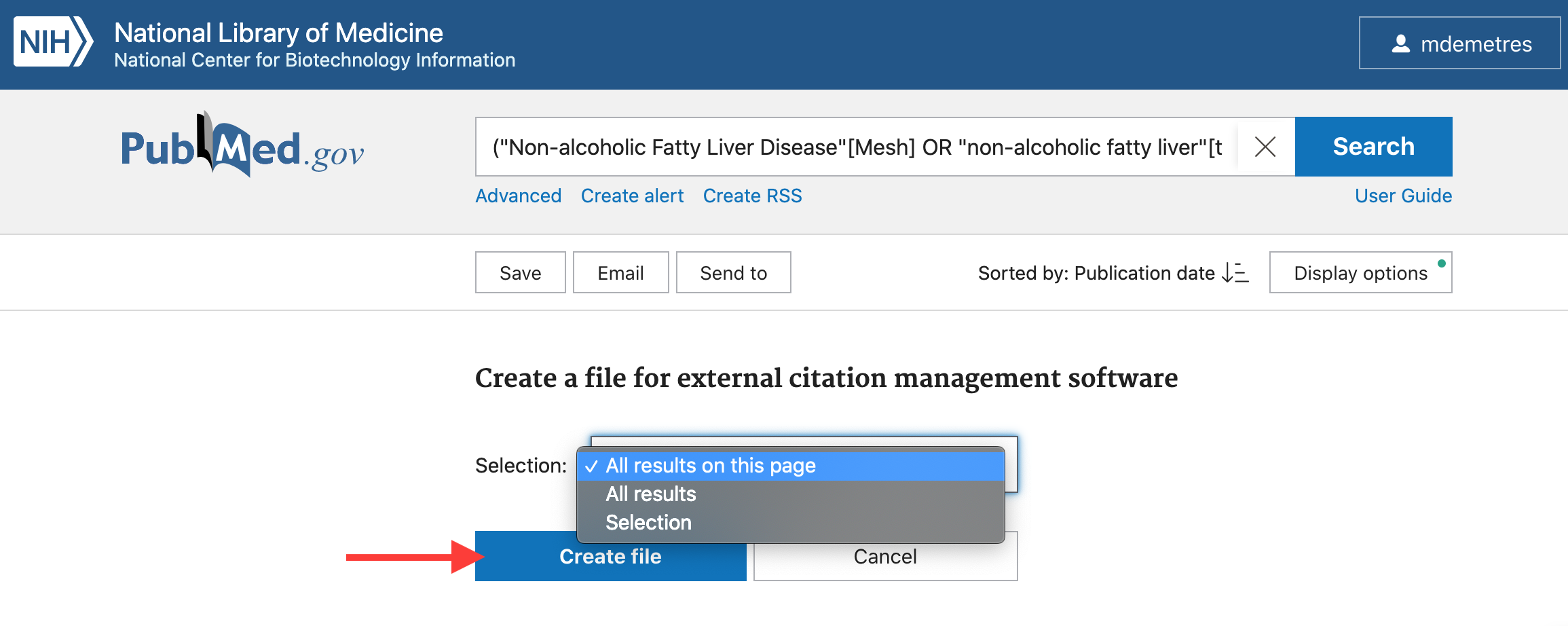
- Click "Create file."
- Open downloaded file. Or, in EndNote, go to File – Import – and choose the downloaded file. Make sure RIS is your import option.
- References will automatically be sorted into the “Imported References" and "Unfiled."
FINDING FULL TEXT
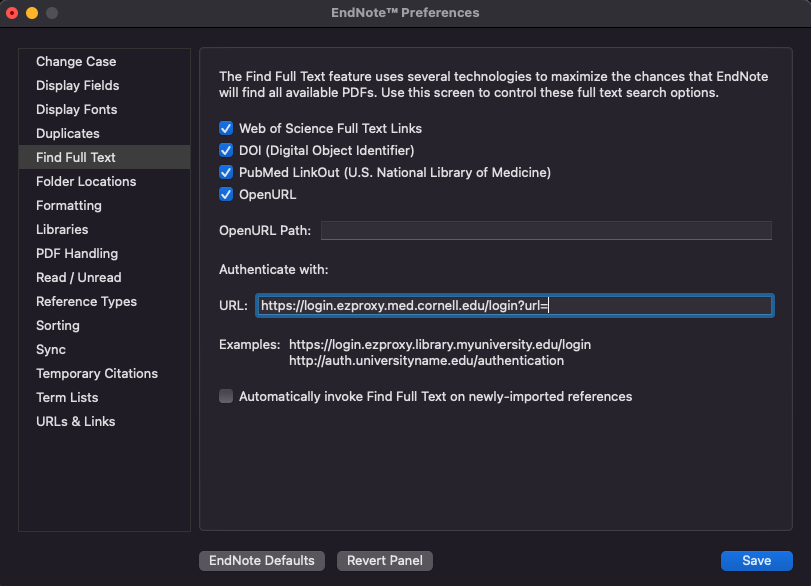
- Go to Preferences - Find Full Text - Authenticate With - URL and paste:
https://login.ezproxy.med.cornell.edu/login?url=
- This will allow you to use your Weill privileges to access full text.
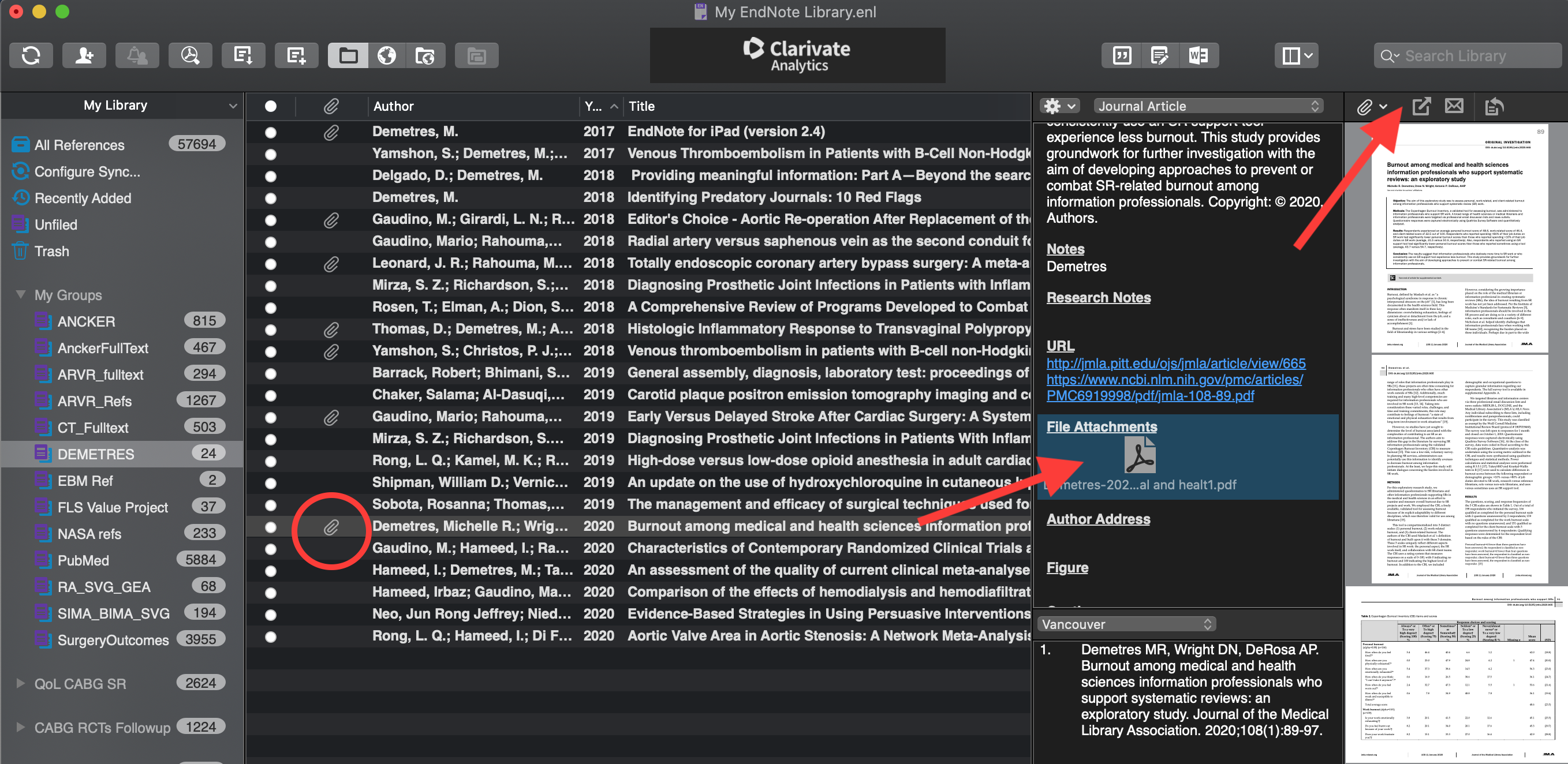
- Highlight the references for which you’d like to find full text.
- Go to References – Find Full Text – Find Full Text. Or, Right Click – Find Full Text – Find Full Text
- On your My Library bar, a “Searching…” dialog will appear while EndNote looks for PDFs. This will take time depending on how many references you’ve selected.
- Once it has finished, the “Searching…” dialog will disappear, replaced with “Found PDF” and “Not found” tabs.
- References with PDFs found will have a small paper clip appear next to the entry. The full text is now attached to that entry.
INSTALLING "CITE WHILE YOU WRITE" FOR MICROSOFT WORD
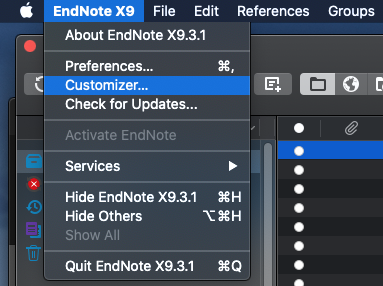
- In Endnote, go to your Customizer
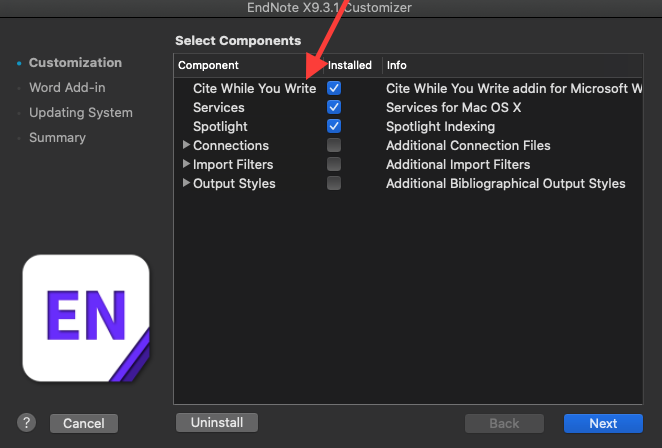
- Make sure that the Cite While You Write box is checked. Click Next and go through the installer. Word will need to be closed for the installer to finish.
- In Word, you should now see and EndNote tab on your toolbar.
INSERTING ENDNOTE REFERENCES INTO A WORD DOC USING DESKTOP WORD – "CITE WHILE YOU WRITE"
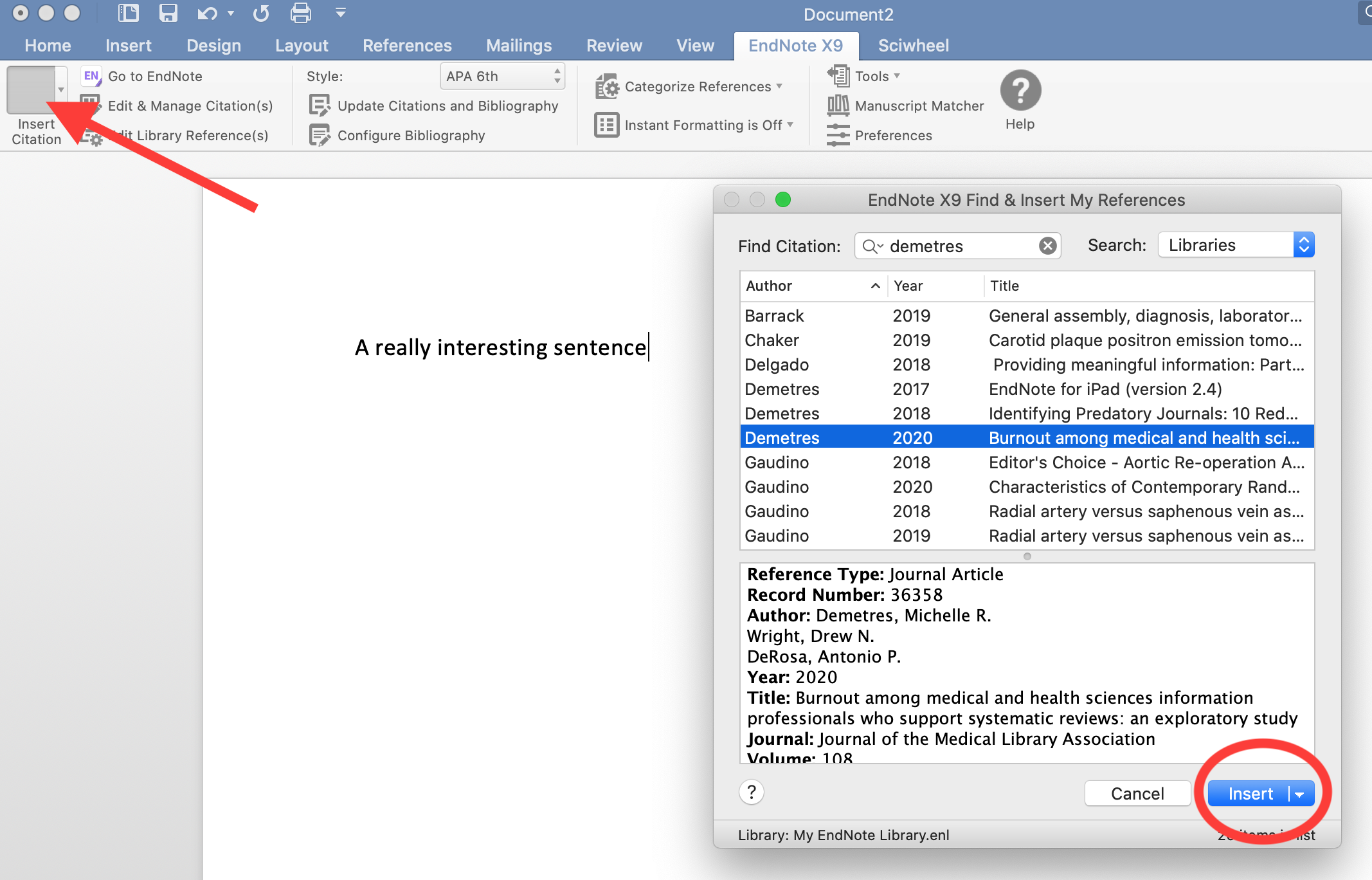
In your Word Doc, place your cursor at the end of the sentence where you want the citation to go
On the EndNote tab in Word (Microsoft Office v2016 or later), click on "Insert Citation"
The “Find & Insert My References” dialog box will appear. Type a keyword from the reference you want to insert (author name, publication year, etc.). Press the Return key to search.
Find the reference you want from the list of results and click “Insert.” This creates an in-text citation as well as a final bibliography entry.
You can change the output style of the entire document by selecting a different style from the drop-down menu on the EndNote toolbar.
CONVERTING TO PLAIN TEXT
Before sending manuscripts to a colleague or publisher, you might want to break the connection with EndNote and remove the EndNote coding.
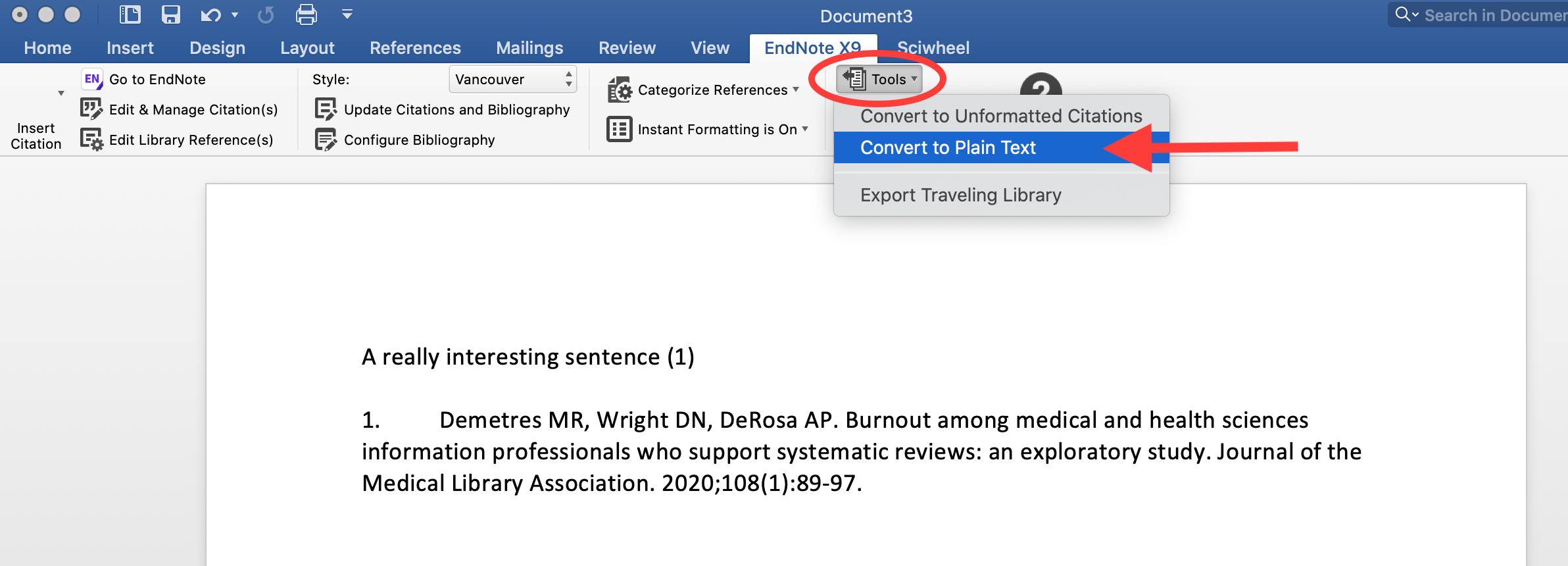
On the EndNote tab in Word, go to Tools – Convert to Plain Text.
This will create a new, separate document without EndNote's markup. Your in-text citations and final bibliography will remain, but are no longer linked to EndNote. You can now make manual edits to the reference list if you choose.
It's important to save the original document with the EndNote markup as well, so you that you can edit citations in the future if need be.